
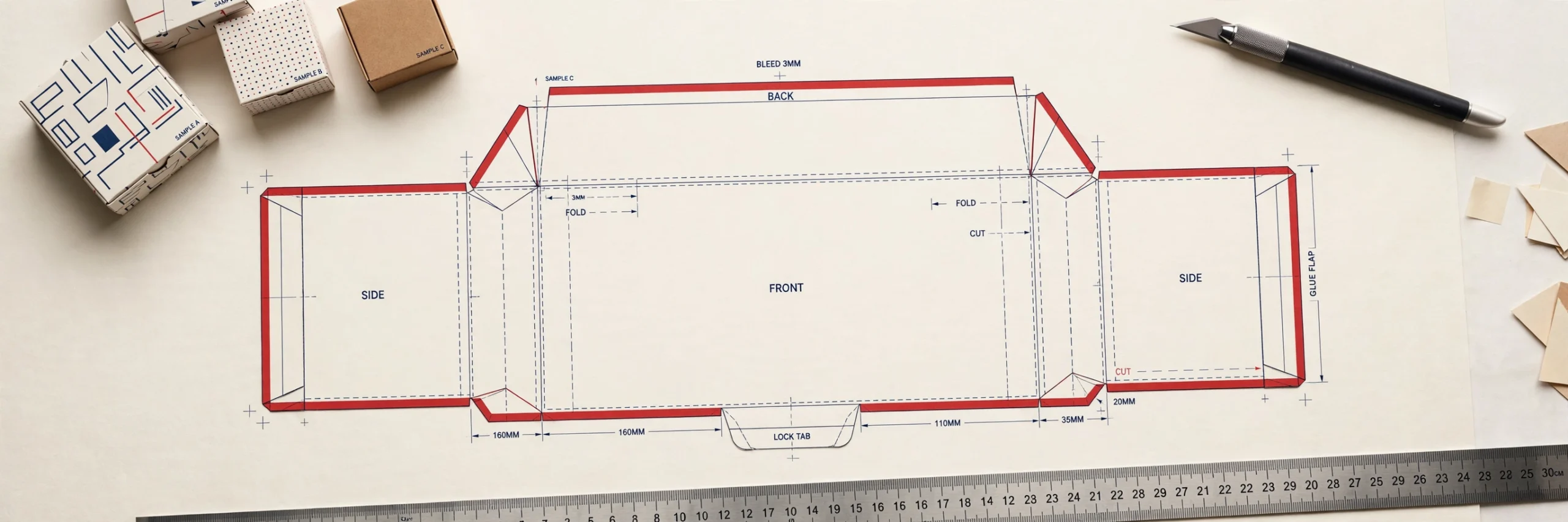
If you are designing a box, pouch, sleeve, carton, or any other printed package, one of the first technical files you will come across is a dieline. So, what is a dieline in packaging? In simple terms, a dieline is a flat 2D blueprint that shows exactly how a package will be cut, folded, glued, and assembled.
For designers, the dieline is the working structure behind the final packaging artwork. It tells you where each panel begins and ends, where important text should stay clear, and how far background colors or images should extend beyond the cutting edge.
This guide is written for graphic and packaging designers who want to understand dielines without getting lost in complicated production terminology. You will learn how dielines work, how to read their lines, how to prepare artwork correctly, and which mistakes can delay printing.
What Is a Dieline in Packaging? Simple Definition
A dieline is the flat, unfolded layout of a package. Think of it as the structural blueprint that shows the printer and manufacturer how the finished package should be produced.

A dieline may include cutting lines, folding lines, glue areas, bleed boundaries, safety zones, perforations, and other production instructions.
The easiest way to understand it is to compare the dieline with the artwork:
- Artwork is what the customer sees. This includes the logo, product name, colors, images, icons, instructions, and other visible design elements.
- The dieline is what the printer and manufacturer follow. It controls the shape, size, cuts, folds, flaps, and construction of the package.
For example, a cereal box may look like a simple rectangle when assembled. However, its dieline is a much wider flat shape containing front and back panels, side panels, top and bottom flaps, dust flaps, and a glue tab.
Why Dielines Matter: The Bridge Between Design and Manufacturing
A packaging design may look perfect on screen, but it still needs to be translated into a physical object. The dieline connects the visual design with the manufacturing process.
A proper dieline tells the printer or packaging supplier important production information such as:
- Overall package dimensions
- Width, height, and depth of individual panels
- Cut or trim locations
- Fold, crease, or score positions
- Glue or adhesive areas
- Bleed boundaries
- Safety or quiet zones
- Perforation locations
- Flap sizes and positions
- Special finishing areas when required
Without a correct dieline, even attractive packaging artwork can fail during production.
A design may shift onto the wrong panel. Text may land directly on a fold. Background colors may stop before the cutting edge. In more serious cases, panels or flaps may be incorrect and the box may not close properly after cutting and folding.
That is why the dieline should never be treated as a decorative guide. It is a production document.
Before You Start Designing: Get the Final Dieline
Whenever possible, ask the printer, converter, or packaging manufacturer for the approved dieline before starting the final artwork.
The structural layout can depend on more than the visible size of the box. Material thickness, folding allowances, manufacturing tolerances, locking mechanisms, and gluing requirements may all affect the final structure.
Before designing, confirm:
- Final finished dimensions
- Packaging material or substrate
- Board or material thickness where relevant
- Printing method
- Required bleed
- Safety margins
- Finishing requirements
- File delivery specifications
Avoid resizing, stretching, or rebuilding a printer-supplied dieline unless the manufacturer specifically approves the change.
Even a small structural adjustment can affect how the package folds or closes.
Dieline Line Types: How to Read the Lines
A dieline normally contains several technical lines. Each one has a different purpose.
| Line Type | What It Means | Typical Appearance |
|---|---|---|
| Cut / Trim Line | Shows where the material will be physically cut | Solid line |
| Fold / Score / Crease Line | Shows where the package will fold | Dashed or dotted line |
| Bleed Line | Shows how far artwork should extend beyond the cut edge | Outer boundary line |
| Safety / Quiet Zone | Marks the area where important content should remain inside | Inner guide line |
| Perforation | Indicates a tear-away or detachable section | Dotted or broken line |
| Glue / Adhesive Area | Shows where glue or adhesive will be applied | Shaded, hatched, or labeled area |
These appearances are common conventions, but they are not universal.
Different printers may use different colors, stroke styles, swatch names, or technical layers. For example, one supplier may use magenta for cutting lines while another may use red.
Always follow the legend and specifications supplied with the actual dieline instead of assuming that a particular color always means the same thing.
Dieline vs. Die-Cut: What’s the Difference?
The terms dieline, die, and die-cutting are related, but they do not mean the same thing.
- Dieline: The digital drawing or structural layout that defines where cutting, folding, and other operations should happen.
- Die: The physical cutting tool or manufacturing tooling used to create the required shape.
- Die-cutting: The production process in which material is cut into the specified shape.
A simplified workflow looks like this:
Dieline → Die or cutting setup → Die-cut packaging pieces → Folding and assembly
In some modern production environments, digital cutting equipment may be used instead of a traditional physical die. The dieline is still essential because the cutting system needs an accurate path to follow.
The Anatomy of a Dieline: Panels, Flaps, and Glue Tabs
A dieline may look confusing at first because the finished package is shown completely flat.
A standard folding carton can contain several structural sections:
- Front panel: Usually carries the main product branding
- Back panel: Often includes product information, instructions, ingredients, or legal copy
- Side panels: Narrower sections connecting the front and back
- Top flaps: Used to close the upper part of the package
- Bottom flaps: Used to create the base
- Dust flaps: Smaller side flaps that help close openings neatly
- Glue flap or glue tab: Narrow section where adhesive is applied during assembly
One important point is that the order of the panels in a flat dieline may not match the order you expect when looking at the finished package.
For example, the panel on the far left of the dieline may become a side panel after assembly rather than the front panel.
Always check the panel labels, folding sequence, or physical prototype before placing important artwork.
How to Set Up a Dieline in Adobe Illustrator
Adobe Illustrator is commonly used for packaging artwork because dielines and production paths are normally vector based.
Here is a practical basic setup.
1. Keep the Dieline on a Separate Layer
Place all structural lines on a dedicated layer, such as:
DIELINE – DO NOT PRINT
Keep this layer above the artwork and lock it once the structure is confirmed.
Do not casually move or scale the dieline while designing.
2. Follow the Printer’s Spot-Color Instructions
Technical lines are often assigned custom spot colors so they remain separate from normal CMYK artwork.
For example, a printer may request separate swatches for:
- Cut
- Crease
- Perforation
- Varnish
- Foil
- White ink
Use the exact naming and color setup requested by the printer.
Some workflows also require certain technical strokes to use overprint settings. Do not assume this automatically; follow the supplier’s production specifications.
3. Build Artwork on Layers Below the Dieline
Keep the technical structure visible while designing, but place branding, images, typography, backgrounds, and other visual elements on separate artwork layers underneath it.
A clean layer structure makes the final file easier to inspect and reduces accidental production errors.
4. Extend Background Artwork to the Bleed
Any image, color, texture, or graphic that is supposed to reach the physical edge of the package should extend beyond the trim line to the bleed boundary.
Do not stop edge-to-edge artwork exactly at the cutting line.
Small movement during cutting is normal, and insufficient bleed can leave thin unprinted edges.
5. Keep Important Content Inside the Safety Zone
Logos, product names, body text, barcodes, icons, and other critical content should stay comfortably inside the safety area.
Avoid placing essential information too close to:
- Trim edges
- Creases
- Perforations
- Glue areas
- Locking tabs
6. Work in the Correct Color Mode
For most conventional printed packaging, artwork is prepared in CMYK rather than RGB.
Also check whether the printer requires specific spot colors, Pantone references, ink limits, or color profiles.
RGB graphics can shift noticeably when converted for print.
7. Prepare Fonts and Linked Assets
Before supplying final production artwork, confirm that all image links are included or embedded according to the printer’s requirements.
Fonts may need to be converted to outlines in the final production file.
However, keep an editable working copy with live text before outlining fonts. Once text is converted to vector shapes, normal text editing becomes much more difficult.
Special Finishes May Need Separate Production Layers
Packaging often contains more than standard printed artwork.
Special processes such as:
- Foil stamping
- Spot UV
- Embossing
- Debossing
- White ink
- Metallic ink
- Varnish
- Raised effects
may require separate spot-color layers or production masks.
For example, if only the brand logo receives gold foil, the printer may request a separate vector shape showing the exact foil area.
These production elements should be clearly named and kept separate from normal CMYK artwork.
5 Dieline Mistakes That Delay Production
1. Ending Artwork at the Cut Line Without Bleed
One of the most common packaging mistakes is stopping a background image or color exactly at the trim line.
Cutting equipment can shift slightly during production. Without bleed, a small movement may create an unwanted white or unprinted edge.
Extend full-bleed artwork to the printer’s required bleed boundary.
2. Placing Text or Logos on Fold Lines
Fold and crease areas are not ideal places for important text.
A word crossing a fold may become difficult to read, and a logo placed directly on a corner can look distorted when the package is assembled.
Keep important content away from folds unless the design intentionally wraps around the edge and has been tested.
3. Designing on the Wrong Panel
A flat dieline is not always visually intuitive.
It is easy to place the front design on a side panel or accidentally rotate text upside down on a flap.
Check panel labels, folding direction, and orientation before finalizing the artwork.
A simple paper mockup can prevent major production errors.
4. Forgetting the Glue Flap
The glue flap is part of the package structure, not a normal design panel.
Important artwork, text, or patterns should generally not be placed in adhesive zones unless specifically approved.
Ignoring the glue tab can result in hidden artwork, poor adhesion, or visible design inconsistencies after assembly.
5. Sending RGB Files and Live Fonts
RGB artwork can produce unexpected color changes when converted for commercial printing.
Live fonts can also create problems if the receiving system does not have the correct typeface installed.
Before delivery, check the required color mode, image links, font handling, and final output specifications.
Dieline Checklist: Before You Send Files to the Printer
Use this checklist before releasing packaging artwork for production:
- Confirm that you are using the latest approved dieline
- Check final package dimensions against the specification
- Make sure the dieline has not been accidentally moved, stretched, or resized
- Verify that full-bleed artwork extends beyond every required cut edge
- Keep important text and logos inside the safety zone
- Check that no critical information sits directly on fold or crease lines
- Confirm that artwork is placed on the correct panels and in the correct orientation
- Keep glue areas clear where required
- Verify that CMYK and spot colors follow the printer’s specifications
- Check fonts, linked images, barcodes, and special-finish layers before exporting
It is also good practice to inspect the file at high zoom and create a simple folded mockup whenever panel orientation is difficult to visualize.
Barcode and Small-Text Checks
Barcodes deserve extra attention because packaging folds, seams, distortion, and print quality can affect scanning.
Avoid placing a barcode directly across a fold, corner, perforation, or glue seam unless the barcode specification specifically allows it.
Small legal copy and ingredient text should also be checked for readability at final printed size.
What appears comfortable to read on a large monitor may become very small once the artwork is printed on the actual package.
Frequently Asked Questions
What is a dieline in packaging?
A dieline is a flat technical drawing that shows the structure of a package, including its cutting lines, folds, panels, flaps, glue areas, and other manufacturing guides. It acts as the template on which packaging artwork is designed.
Who creates the dieline: the designer or the printer?
In many commercial packaging projects, the printer, packaging converter, manufacturer, or structural packaging designer creates the production dieline. The graphic designer then places the artwork onto that approved structure. A graphic designer can create a dieline for concepts or prototypes, but production dielines should be checked and approved by the manufacturer before printing.
What does a packaging dieline look like?
A dieline normally looks like a flat vector drawing made from outlines, panels, flaps, tabs, and several types of technical lines. When folded along the crease lines, this flat drawing becomes the three-dimensional package.
Can I design packaging without a dieline?
You can create a visual concept without a final dieline, but production-ready packaging normally requires one. Without the actual dieline, you cannot accurately know where panels, folds, glue tabs, trim edges, and safety areas will be located. For final artwork, always work from the approved structural layout.
Can I make my own dieline?
Yes, designers can create dielines for mockups, prototypes, presentations, and simple custom projects. However, a dieline intended for commercial manufacturing should be reviewed by the printer or packaging supplier because material thickness, machinery, tolerances, and construction requirements can affect the structure.
What file format is normally used for dielines?
Dielines are usually supplied as editable vector artwork. Common formats include:
- Adobe Illustrator files
- Editable PDF files
- EPS files
The exact format depends on the printer or packaging supplier. Whenever possible, use the original vector file rather than tracing a screenshot, JPG, or flattened image.
Conclusion
Understanding what a dieline in packaging is makes the entire packaging design process more predictable. The dieline is not simply a collection of technical lines around your artwork. It is the structure that determines how the design will become a real package after printing, cutting, folding, gluing, and assembly.
For designers, the safest workflow is simple: use the approved dieline, keep technical elements separate from artwork, respect bleed and safety areas, verify every panel, and follow the printer’s production specifications. A careful dieline check before sending files can prevent misaligned graphics, missing bleed, incorrect panel placement, assembly problems, and avoidable production delays.